Phone Lagging? Remove These Apps and Feel the Difference

- Created Mar 03 2026
- / 292 Read
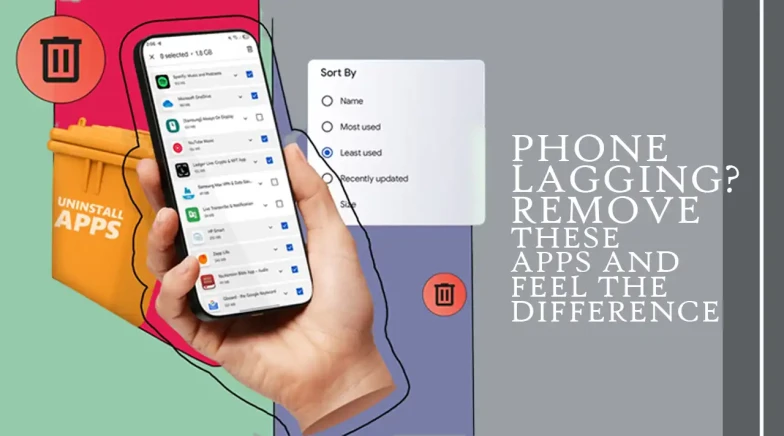
Phone Lagging? Remove These Apps and Feel the Difference

New gadgets are faster and have more functions, but they also include bloatware, or unnecessary programs. We are referring to the majority of Android phones. While cell carriers or partners add some of these apps, phone brands develop others. These programs are pre-installed on smartphones in order to promote services, offer extra features, or make money. These apps just take up storage space, operate in the background, and may show pointless notifications because they are rarely used.
Bloatware might also cause your smartphone to lag. Also, removing or deleting these apps might help keep your smartphone operating properly and save up space. Here are five methods for clearing your smartphone of bloatware.
Method 1: From Settings, remove bloatware
Using your phone's settings to remove bloatware is the simplest method. This technique is used to remove bloatware software, especially third-party apps, that aren't locked by the OS.
-
Open the Settings app on your Android phone.
-
Go to the Apps section.
-
Tap on See all apps to view the complete app list.
-
Select the app you want to remove.
-
Tap the Uninstall button.
-
Confirm by pressing Yes (or OK).
-
After uninstalling, restart your phone to clear background processes and improve performance.
Second method: Disable pre-installed apps that you can't uninstall.
Because they are an integral element of the system, certain programs cannot be removed. You may, however, turn them off. Disabling an app hides it from your app drawer, prevents it from operating, and reverses updates. Even if the app is installed on your device, this can help preserve battery life and enhance performance. Use these easy ways to disable an app:
-
Open the Settings app.
-
Scroll down and tap on Apps.
-
Select the app you want to manage.
-
Tap the Disable button.
-
Confirm your choice when prompted.
Method Three: Remove Bloatware Using ADB.
Using a computer, you may use Android Debug Bridge (ADB) to delete system applications from your Android phone. Apps that you can't usually remove from your phone may be removed using this approach, which is quite effective. But you must use caution. Your phone might not work correctly if you uninstall a crucial system app.
A computer, a USB cord, and ADB installed on your PC are required for this. You can take the following actions if you are know you have all you need:
-
Go to Settings on your phone.
-
Open About Phone.
-
Tap the Build Number seven times to enable Developer Options.
-
Go back to Settings and open Developer Options.
-
Turn on USB Debugging.
-
Connect your phone to your computer using a USB cable.
-
Open a Command Prompt (Windows) or Terminal (Mac/Linux) on your computer.
-
Use ADB commands to remove specific app packages from your device.
Note: This method is more advanced and should be used carefully. Removing important system apps can cause your phone to malfunction.
Fourth method: Use third-party bloatware removal apps.
You may also utilize third-party apps from the Google Play Store to get rid of bloatware from your device if the aforementioned techniques were too difficult or didn't work for you. But be sure the software doesn't request needless permissions and comes from a reliable developer.
Fifth method: Root your Android device
In addition to giving you total control over your Android smartphone, rooting can assist you in removing bloatware that isn't otherwise allowed. However, it's simpler to remove applications from your smartphone after rooting it.
Explore: Moderntimes24.com
For Add Product Review,You Need To Login First